
Typing.com: The Complete Guide to Free Typing Lessons, Tests, and Practice
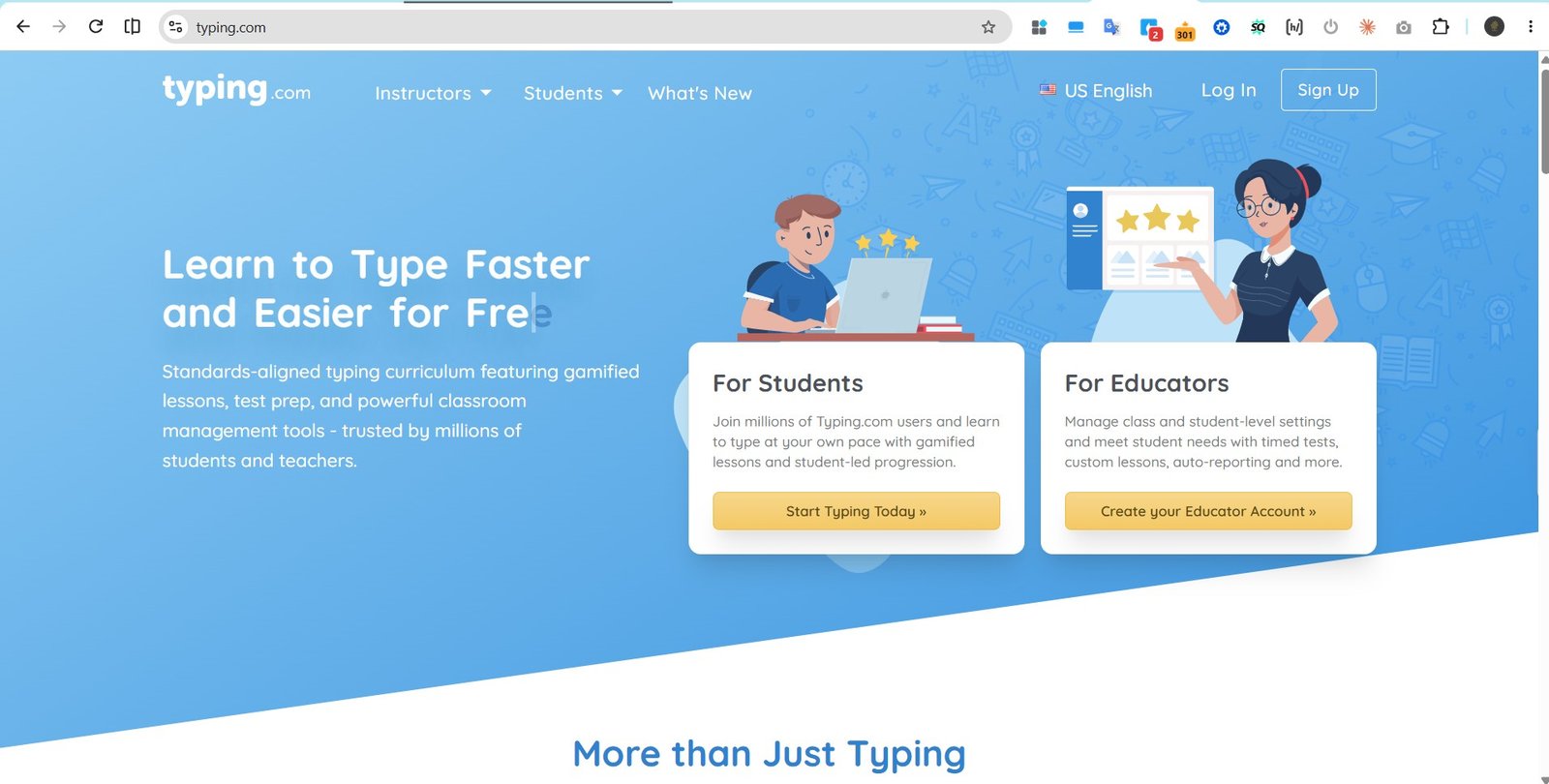
Typing.com is a free, ad-supported touch typing program used by schools worldwide to teach keyboarding from the home row through to full paragraphs. The core curriculum genuinely costs nothing: every lesson, game, and speed test is open to anyone with a browser. The catch is what the free tier does not include, and the one that surprises teachers most is that free accounts only retain student progress data for 70 days. This guide covers what you get without paying, what the paid tiers actually add, how student and teacher logins differ, whether the platform is safe for children, and when a different typing site is the better call.
What Typing.com Actually Is
Typing.com is a browser-based typing tutor built around touch typing, the method of typing without looking down at the keyboard. Lessons start on the home row keys (A, S, D, F, J, K, L), add number keys, punctuation, and symbols in stages, then move into full sentences and paragraphs. Progress saves automatically, so a learner can stop mid-lesson and pick it up on a different device.
Two audiences use it for quite different reasons. Schools use it as a keyboarding curriculum: a teacher creates a class, adds students, assigns lessons, and watches speed and accuracy figures build up in a dashboard. Individual learners, from job applicants to remote workers, use it as a free place to practise and to check their words-per-minute score. Both groups use the same lessons; the difference is who is tracking the results.
The business model explains almost everything else about the platform. Typing.com is funded by advertising rather than by subscriptions, which is why the full curriculum can be free and why banner ads appear while you type.
Free vs Paid: What the Money Actually Buys
This is the part most guides skip, and it is the part that decides whether Typing.com works for you. There are two separate paid products, which is a common source of confusion: PLUS Edition is aimed at individual learners, while Premium is the school and district plan sold per student.
| What you get | Free | Paid (PLUS / Premium) |
|---|---|---|
| Typing lessons, games, and speed tests | Full access | Full access, plus exclusive games |
| Banner ads during lessons | Yes | None |
| Student progress data retention | 70 days | Unlimited |
| Classes, students, and teachers per account | Unlimited | Unlimited |
| Settings control | Classroom level only | Per-student settings and goals |
| Support | Email only | Priority phone and email |
| Extended curriculum tracks | Limited | Digital citizenship, technology foundations, AI literacy, computer applications |
Typing.com does not publish one flat price. Premium is billed per student per year and the rate falls steeply at district volume, so published figures have ranged from roughly a dollar per student at very large licence counts to under ten dollars per student for a single classroom. Check the current plan comparison on typing.com before putting a number in a budget, because these tiers have been restructured more than once.
The 70-Day Data Rule Teachers Miss
On a free Typing.com account, student progress records are kept for 70 days. A typical school term runs longer than that. A teacher who starts keyboarding in September and pulls a progress report in December may find the early weeks are simply gone, which matters if those figures were meant to support a grade or a year-end report.
There are two workable responses. Either export or screenshot class reports at the end of each unit while the data is still there, or treat Premium as the price of keeping a full-year record. Neither is a reason to avoid the platform, but discovering the rule in December is worse than planning around it in September.
How the Three Main Tools Work
Typing Lessons
Lessons are broken into short sections, each focused on one small group of keys, and the screen shows which finger should press each one. The sequence is fixed rather than adaptive: every learner walks the same path, in the same order, regardless of which keys they personally keep getting wrong. That consistency suits a classroom of thirty students. It frustrates a fast learner who wants to skip ahead, and it does little for someone whose only real weakness is the number row.
Typing Games
Games sit between lessons and use typing as the core mechanic, so learners keep practising while the activity feels lighter. In classrooms this is usually what stops a keyboarding block from collapsing after fifteen minutes. The library is solid but smaller than platforms built entirely around games, so a child who is motivated purely by competition may drift.
Typing Tests
A test asks the learner to type a short passage, then reports words per minute alongside an accuracy percentage. The quick test runs without any sign-up, which makes it usable as a one-off speed check for a job application. Teachers get a longer, more formal assessment for grading, which draws on a bigger passage and gives a more stable score than a thirty-second burst.
There Is More Than Typing on Typing.com
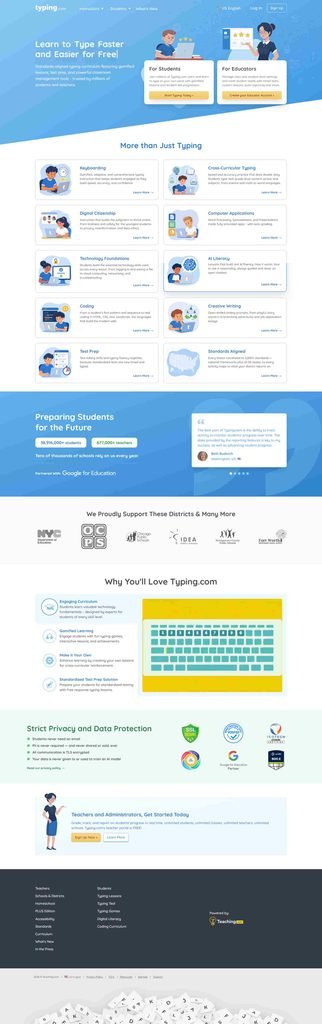
Alongside keyboarding, the platform carries lessons on online safety, ethics and privacy, core computer and hardware skills, responsible AI use, and everyday applications such as documents, spreadsheets, and presentations. There is also an introduction to coding. The curriculum is written to align with State, ISTE, and Common Core standards, which is a large part of why schools adopt it: one free tool covers a chunk of the digital literacy requirement as well as the typing one.
Quality across these extra units is uneven. Some are genuinely well made, others read like boxes being ticked, and the deeper tracks sit behind the paid tier. Treat them as a useful bonus rather than the reason to choose the platform, and if digital literacy is the actual goal, it is worth understanding the wider digital ecosystem these tools sit inside before building a course around any single site.
How to Sign Up and Log In
Three account types exist, and picking the wrong one is the most common reason a first login fails.
- Open typing.com and choose Sign Up.
- Select student, teacher, or individual learner. Students join a class; individuals do not.
- Enter what that account type needs: a class code for students, a work email for teachers, a personal email for individuals.
- Confirm the account and sign in.
- Take a placement test first, then start lesson one.
Younger students usually do not need an email address at all. Many schools set accounts up with a class code and a first name, which keeps the process manageable for a teacher handling a full class. Schools already using Google Classroom, Clever, or ClassLink can sign students in through single sign-on instead, though Clever syncing is the integration users report problems with most often. If a student login stops working after a roster change, that sync is the first place to look.
Is Typing.com Safe for Children?
On the data side, the platform’s position is unusually clear. Personally identifiable information is never required to use Typing.com, communication within the site is TLS encrypted, and the company states it does not share or sell user data. For a school weighing up a free tool, that is a stronger privacy stance than most ad-funded services offer.
The advertising is the real point of friction, and it is worth being blunt about it. Free accounts display rotating banner ads on the same screen as the lesson. Reviewers consistently name these as the platform’s biggest weakness, and for a seven-year-old trying to keep their eyes off the keyboard, a moving banner is exactly the wrong thing in their peripheral vision. If ads in a primary classroom are a problem, Premium is not a luxury upgrade, it is the fix. Schools that want to go further can pair the typing curriculum with a proper grounding in online safety basics so students understand what they are looking at.
Accessibility is handled better than the price suggests. The site runs in English and Spanish, videos carry transcripts, and text-to-speech dictation is available for visually impaired learners.
What Speed Should You Actually Aim For?
Around 40 words per minute is the usual working target for teenagers and adults, and most beginners start well below it. The number that matters more is accuracy. Typing at 60 words per minute with a mistake every line is slower in practice than 40 clean, because the time goes into backspacing.
Because Typing.com’s lesson path is fixed rather than adaptive, progress comes from frequency rather than from the platform steering you. Ten to fifteen minutes daily beats a single long session each week, and retaking a speed test every fortnight is enough to see movement without turning every session into a score check. If your weak keys are specific and you already type reasonably well, a platform that adapts drills to your error pattern will get you further than repeating a fixed sequence.
Where Typing.com Falls Short
- Ads in the free tier. The single most common complaint, and the most disruptive one for young learners.
- No flexible pacing. Fast and slow learners follow the same fixed path.
- Repetitive lesson structure. Motivation dips in the middle of the course for some students.
- Occasional lag and errors. Reviewers report intermittent technical issues and clumsy error handling.
- 70-day free data retention. Long-term progress records need a paid plan or manual exports.
Support is the counterweight. Even free users describe the response as fast and genuinely helpful, which is not the norm for a no-cost education tool.
Typing.com vs the Alternatives
| Platform | Its strength | Best for |
|---|---|---|
| Typing.com | Full free curriculum plus classroom management | Schools and self-teaching beginners on no budget |
| TypingClub | Comparable free lessons and school tools | Teachers who want a direct alternative to compare |
| Nitro Type | Racing games as the core mechanic | Students motivated by competition, not curriculum |
| Keybr | Adaptive drills built around your weak keys | Intermediate typists fixing specific errors |
| 10FastFingers / TypingTest.com | Fast, no-friction speed checks | Anyone who only wants a WPM number today |
The honest summary: Typing.com wins on breadth and price, not on personalisation. Nothing else gives a teacher a full standards-aligned keyboarding course, a dashboard, and a game library for nothing. But a motivated adult who already types at 50 words per minute will improve faster on an adaptive tool than on a fixed beginner path.
Who Should Choose It, and Who Should Not
Choose Typing.com if you are a teacher who needs a structured keyboarding curriculum with progress tracking and no budget, a parent or homeschooler wanting a proven path from zero to touch typing, or a complete beginner who has never learned finger placement properly.
Look elsewhere if you already type competently and want drills targeted at your own error pattern, you are teaching young children in an environment where on-screen advertising is not acceptable and Premium is not an option, or you only need a one-off speed score for a job application, in which case a dedicated speed test site is faster than creating an account.
For teachers who do adopt it, the habits that produce results are unglamorous: short and frequent practice blocks rather than rare long ones, a weekly look at the dashboard to catch students falling behind, games interleaved with formal lessons, and speed goals tied to grade level rather than to the fastest child in the room.
This breakdown follows the same method used in our approach to reviewing websites, and you can find similar assessments of other platforms in the Internet and Web section.





One Comment
Comments are closed.